Try Email Classification in Dynamics 365 Customer Service
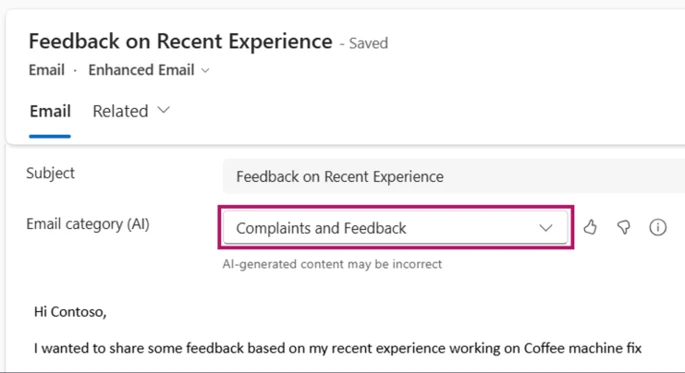
Email Classification adds intelligent context to enhance Automatic Record Creation (ARC) and enable a smarter service flow. As emails arrive, classification evaluates content and context upfront before any case is created. It identifies real customer issues early while filtering out irrelevant messages.
This signal feeds into Automatic Record Creation rules, ensuring only meaningful emails become cases while filtering non-actionable messages. Service representatives and agents then focus on relevant cases, enriching, routing, and resolving true customer issues. This creates a cleaner queue and boosts productivity by eliminating time spent on unnecessary case handling.
That early decision point is exactly where Email Classification adds value. Now generally available in Dynamics 365 Customer Service, it uses AI to evaluate each email before a case is created. This helps teams focus only on issues that truly need attention. Previously, the system created a case for every email sent to a monitored mailbox, started an SLA, and assigned a service representative.
Empower service managers with intelligent email triage
Email Classification gives Customer Service teams precise control over how incoming mail is processed from the moment it arrives:
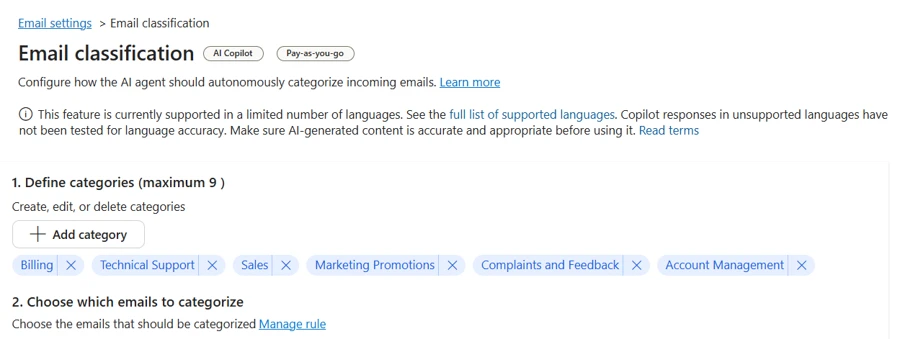
- Define categories such as Billing, Technical Support, or Marketing to match how your organization actually receives email
Create cases only when needed — prevent categories like Marketing or Notifications from generating cases, eliminating unnecessary SLA pressure
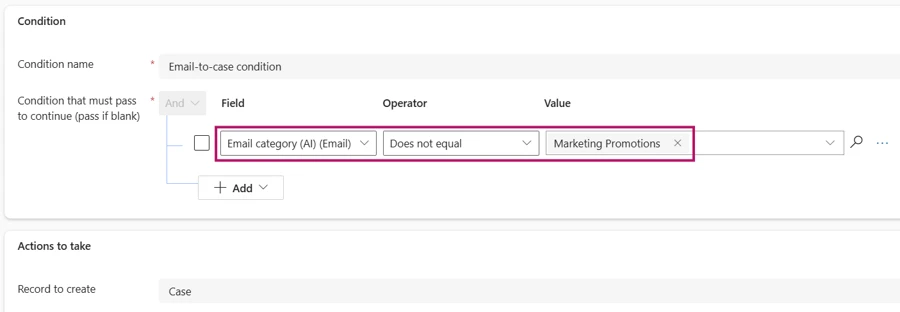
Use email category in ARC to create cases only when needed
Email Classification works best when paired with Automatic Record Creation (ARC) rules. Use the assigned category as a condition in ARC, so cases are created only for emails that genuinely require one and everything else is filtered out before it reaches a queue.
Set up Email Classification
Configuration takes place in the Customer Service admin center under Email settings:
- Define your categories — each needs a name and description to help the AI classify accurately
- Set scope conditions to control which incoming emails are evaluated
- Enable classification — every email that meets your conditions is automatically analyzed and tagged before any case logic runs
Before going live, simulation mode lets you test classification accuracy against your own historical emails so you can validate categories, refine descriptions, and deploy with confidence.
Once enabled, service representatives see only the cases that belong in their queue — routed to the right people, free of noise — and can focus their time where it has the greatest impact on customer outcomes.
Get started today
Ready to reduce queue noise and reclaim service representative capacity? Enable Email Classification in your Customer Service admin center and start with simulation mode to validate your categories. For step‑by‑step guidance, read the documentation:
Configure email classification in Customer Service | Microsoft Learn
The post Try Email Classification in Dynamics 365 Customer Service appeared first on Microsoft Dynamics 365 Blog.